
In Asiga Composer, material configurations containing printer parameters and cure profiles are stored as .ini files, one file per material across all Asiga 3D printer models. By default, materials manufactured by Asiga are included when installing Composer. If you have an Asiga material that does not show on Composer, ensure that it is on the latest update first. In addition, Asiga has validated over 650 resin material profiles from over 80 companies to use on Asiga 3D printers under its open material system. For third-party materials validated by Asiga, follow the steps to download and import the configuration file:
Download Material File
Login at https://myaccount.asiga.com/.
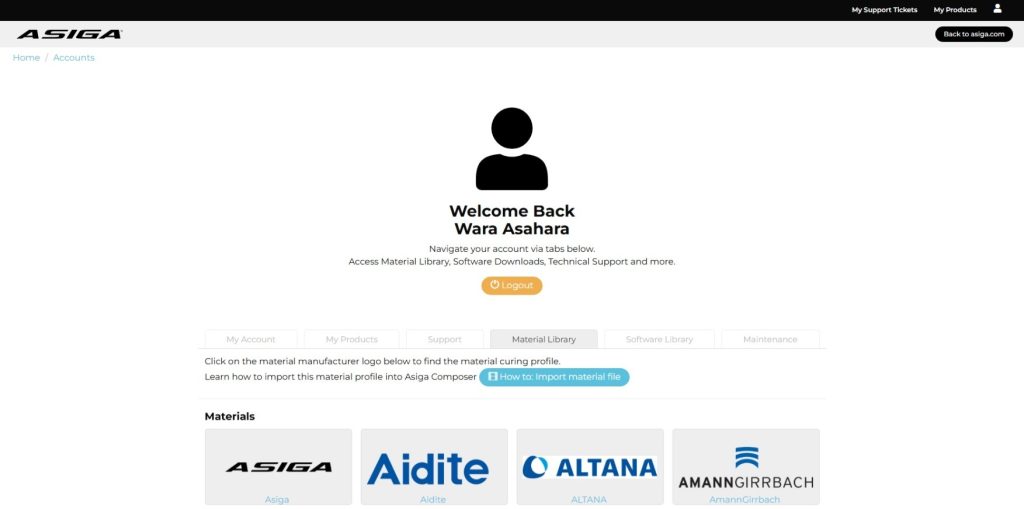
Click on the ‘Material Library’ tab. Select the material company, then download the .ini file for the material.
Import Material File
Open Asiga Composer and either create a new build or open Build Properties.
Select “Material Profile Settings”, then “Import material profile” to import the downloaded .ini file from your files.
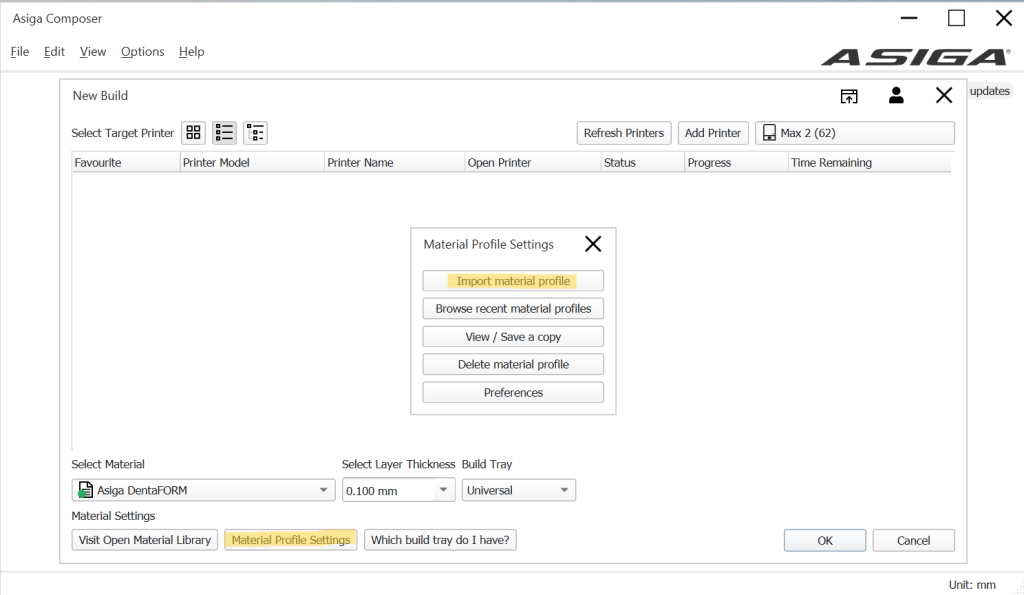
This material file will be stored in your installation of Asiga Composer. Remember to select the new material for any print jobs using it.
That is all the configuration that is required for using validated materials on your Asiga printer. If you send a job to an Asiga printer while an Asiga Cure is powered on and connected to the network, the Cure will receive the build and the material’s cure profile automatically. If there are any issues using the material profile, contact support.